How to Self-Host Kestra Locally with Docker Compose and External PostgreSQL (with Secrets Setup)

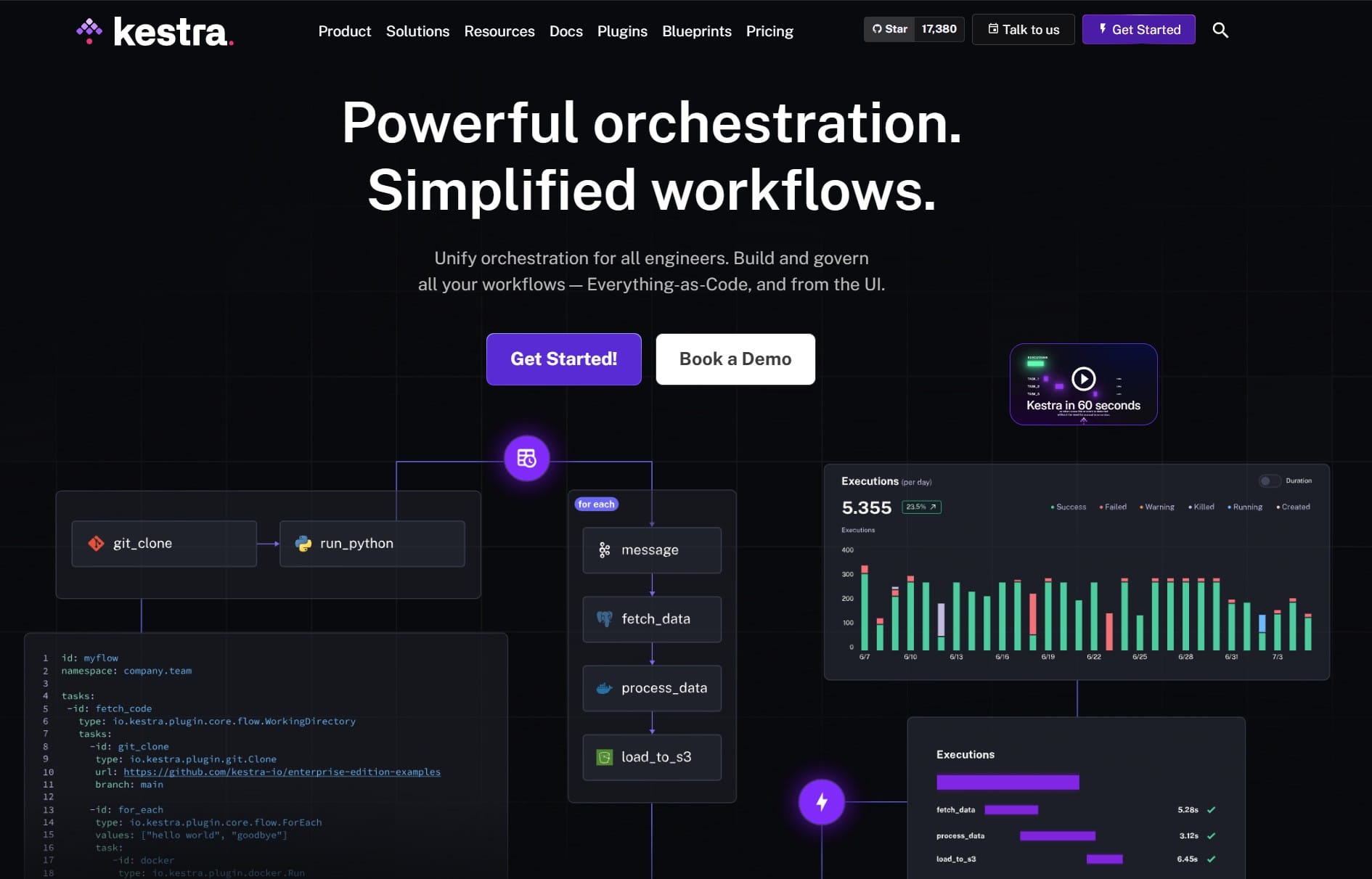
In this guide, we’ll walk through how to use a docker-compose.yml file to set up Kestra, a powerful open-source workflow orchestration platform, on your local machine using an external PostgreSQL database. You’ll also learn how to manage secrets securely using environment files and Base64 encoding.
Kestra is an open-source orchestration platform designed for building code-first workflows that help you run and manage complex data pipelines.
n8n vs Kestra: Quick Comparison
| Feature | n8n | Kestra |
|---|---|---|
| Style | Low-code, visual editor | Code-first, YAML-based |
| Best For | API integrations, webhooks, lightweight automation | Data pipelines, ETL, complex orchestration |
| Integrations | 700+ SaaS tools (e.g., Slack, Google) | Data tools (SQL, S3, GCS, Python, etc.) |
| Scalability | Good for small/medium tasks | Built for large, scalable workloads |
| Target Users | Non-devs, ops, automation builders | Developers, data engineers, DevOps |
- Choose n8n for simple automations and integrations.
- Choose Kestra for scalable, code-driven data workflows.
🧰 Prerequisites
Make sure you have the following installed on your local machine:
- Docker
- Docker Compose
dos2unix(used later for secret handling – see below for how to install it)
📁 Directory Structure
Create a directory like this for your setup:
kestra-docker/
├── docker-compose.yml
├── .env
├── .env_encoded
└── addSecret.sh
🧪 Complete docker-compose.yml as below:
services:
  kestra:
    image: kestra/kestra:latest
    container_name: kestra_automation
    pull_policy: always

    # Run as root to access the Docker socket (development only)
    user: "root"
    command: server standalone

    volumes:
      - ./kestra_data:/app/storage                  # Store Kestra data locally
      - /var/run/docker.sock:/var/run/docker.sock   # Enable Docker socket access
      - /tmp/kestra-wd:/tmp/kestra-wd               # Temp directory for tasks
    env_file:
      - .env_encoded                                # Base64-encoded secrets environment file
    environment:
      KESTRA_CONFIGURATION: |
        datasources:
          postgres:
            url: ${LOCAL_DB_HOST}
            driverClassName: org.postgresql.Driver
            username: ${LOCAL_DB_USER}
            password: ${LOCAL_DB_PASS}
        kestra:
          server:
            basicAuth:
              enabled: true                       # Enable basic authentication
              username: ${USERNAME}               # Must be a valid email
              password: ${PASSWORD}
          repository:
            type: postgres
          storage:
            type: local
            local:
              basePath: "/app/storage"
          queue:
            type: postgres
          tasks:
            tmpDir:
              path: /tmp/kestra-wd/tmp
    ports:
      # external_port : docker_internal_port,
      # you can use your own ports.
      - "5679:8080"  # Web UI
      - "5680:8081"  # Internal API (optional)
🧪 Create .env as below:
# PostgreSQL Database Configuration
LOCAL_DB_HOST=jdbc:postgresql://<host_ip>:<port>/<database_name>
LOCAL_DB_USER=<db_usename>
LOCAL_DB_PASS=<db_password>

# Kestra UI Credentials (Optional for basic auth login)
USERNAME=<kestra_username>
PASSWORD=<kestra_password>

# Custom Secrets for use in Kestra Workflows
Example1=<example1_secret>
Example2=<example2_secret>
Example3=<example3_secret>
🔐 Add Your Own Secrets (Base64 Encoded)
We’ll use a helper script to convert your .env values into a Base64-encoded .env_encoded file for use in Kestra Secret
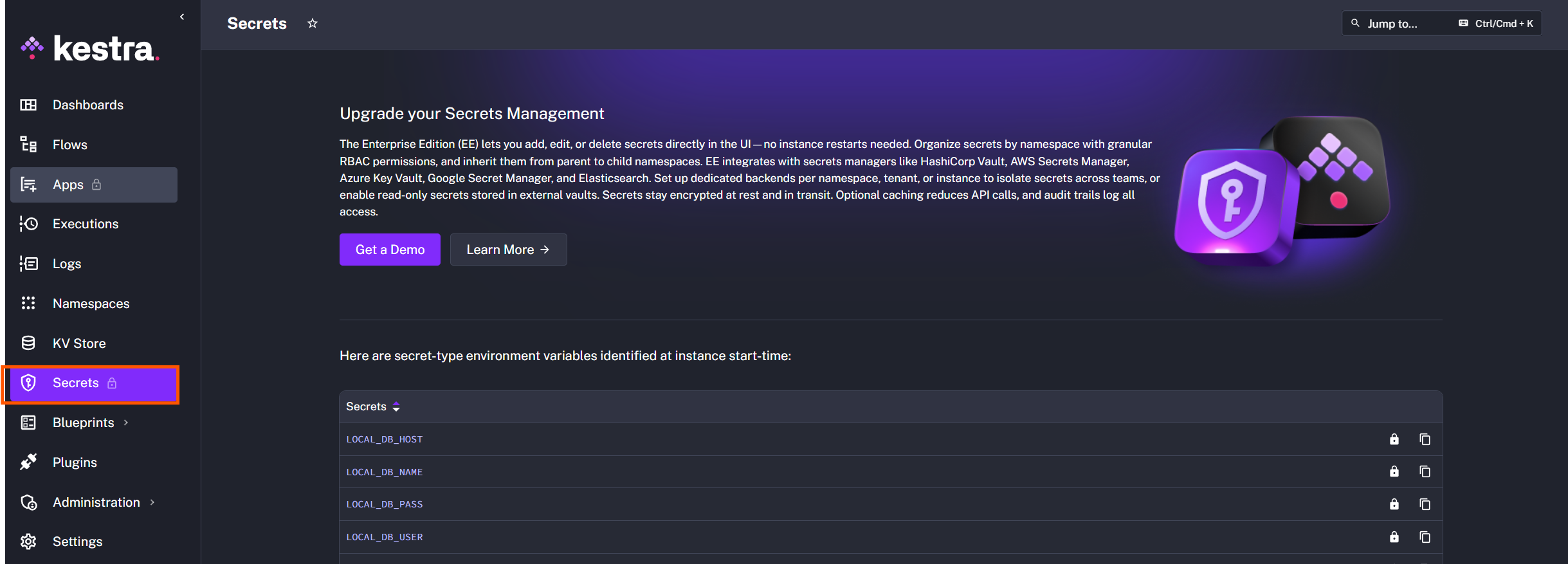
📜 Create addSecret.sh Script:
# Convert CRLF to LF if needed (Windows → Unix line endings)
dos2unix .env

# Loop through .env and base64-encode values
while IFS='=' read -r key value; do
    echo "SECRET_$key=$(echo -n "$value" | base64)";
done < .env > .env_encoded

echo "SECRET_ variables successfully written to .env_encoded."
🧾 Installing dos2unix (If not installed)
sudo apt-get update
sudo apt-get install dos2unix -y
🛠 Make It Executable
chmod +x addSecret.sh▶️ Run the Script
./addSecret.sh🔐 Now you’ll have a .env_encoded file ready for Docker Compose.
🚀 Running Kestra Locally
Start Kestra:
docker-compose up -dAccess Kestra UI:
- Web UI: http://localhost:5679
- API: http://localhost:5680
🧑💻 Login using the credentials from your .env file.
🔄 Updating Secrets
Whenever you update .env, regenerate the encoded file:
./addSecret.sh
docker-compose down
docker-compose up -d
✅ You’ve now successfully:
- Installed and configured Kestra locally with Docker Compose.
- Connected it to an external PostgreSQL database.
- Managed secrets securely with Base64 encoding and automation.
With this setup, you're ready to begin building powerful data pipelines using YAML-based workflows in self-hosted Kestra.
If you found this guide helpful, consider supporting me!